Thursday, July 9, 2020

Truncating Data in SQL Server and fixed in ANSI_WARNINGS


Here in SQL SERVER 2019
Microsoft has fixed one of our old age problem about displaying the column which is being truncated while inserting the data i.e. "String or binary data would be truncated" by the help of ANSI_WARNINGS

Let's check it with an example.

First, create a test table with a single column with datatype varchar(5).
1
2  
3
 USE Test_Data
GO
CREATE TABLE ProductTable (ProductName VARCHAR(5));


Next, try to insert data string which is longer than 5 characters.
1
2
3
  INSERT INTO ProductTable (ProductName)
  VALUES ('Samsung Mobile');
  GO

When you run the above script it will give you the following error:

Msg 2628, Level 16, State 1, Line 1
String or binary data would be truncated in table ‘TestData.dbo.ProductTable’, column ‘ProductName’. Truncated value: ‘Samsu’.
The statement has been terminated.

This is because the string is larger than the maximum width the column can hold. Now let us run a simple select statement and see the data inside the table. You will find that your table is empty and there are no data in it.

While we were working with various options, we turned off the ANSI_WARNINGS for the session and when we ran the same command, the result was interesting. Let us try that out together.

Turn off the ANSI warnings.

1  
2
SET ANSI_WARNINGS OFF
GO

Next, run the following command one more time.
1
2
3
  INSERT INTO ProductTable (ProductName)
  VALUES ('Samsung Mobile');
  GO

Now this time the query will work fine and there will be no error at all.


Tuesday, July 7, 2020

Turning OFF or ON Query Store for All the Database in SQL Server


----// Turning OFF Query Store for All the Databases

SELECT 'USE master;' AS Script
UNION ALL
SELECT 'ALTER DATABASE ['+name+'] SET QUERY_STORE = OFF;'
FROM sys.databases
WHERE name NOT IN ('master', 'model', 'tempdb', 'msdb', 'Resource')
AND is_query_store_on = 1;

----// Turning ON Query Store for All the Databases

SELECT 'USE master;' AS Script
UNION ALL
SELECT 'ALTER DATABASE ['+name+'] SET QUERY_STORE = ON;'
FROM sys.databases
WHERE name NOT IN ('master', 'model', 'tempdb', 'msdb', 'Resource')
AND is_query_store_on = 0;


----// Query Store for All the Databases For Operation Mode = Read Write

SELECT 'USE master;' AS Script
UNION ALL
SELECT 'ALTER DATABASE ['+name+'] SET QUERY_STORE = ON (OPERATION_MODE = READ_WRITE);'
FROM sys.databases
WHERE name NOT IN ('master', 'model', 'tempdb', 'msdb', 'Resource')
AND is_query_store_on = 0;

----// Query Store for All the Databases For Operation Mode = Read Only

SELECT 'USE master;' AS Script
UNION ALL
SELECT 'ALTER DATABASE ['+name+'] SET QUERY_STORE = ON (OPERATION_MODE = READ_ONLY);'
FROM sys.databases
WHERE name NOT IN ('master', 'model', 'tempdb', 'msdb', 'Resource')
AND is_query_store_on = 0;

----// Read-Only Database

-- Script to make database read only 
USE [master]
GO
ALTER DATABASE [TestDb] SET READ_ONLY WITH NO_WAIT
GO

----// Read Write Database

-- Script to make database read write
USE [master]
GO
ALTER DATABASE [TestDb] SET READ_WRITE WITH NO_WAIT

GO

Monday, July 6, 2020

How to Configure Database Mail and Enable it on SQL Server


How to Configure Database Mail and Enable it on the SQL Server Agent

A. Prerequisite Checks and Steps

SMTP Server Info: you’re going to need the fully qualified name, port information, and authentication information for your smtp server. Get this from your sysadmin so you don’t stall out along the way.
SQL Agent Operatoryou may want to create an operator before you set this all up. You’ll use it here in your final test. (Don’t worry, that’s fast.)
Setting Checks: There are a couple things we like to look at before trying to configure Database Mail that can throw a real monkey in your wrench.
  1. Make sure Service Broker is still enabled in msdb (it is by default)
  2. Make sure SQL is configured to use the Database Mail XPs (it is NOT by default)
Here’s code to check those things:
Here’s an example of the results that come back:

Picture4
1 & 1

What if Someone Turned Off Service Broker in msdb?

If for some reason Service Broker isn’t enabled, you may have larger issues than this to worry about:
  • Are you using an Edition of SQL Server that supports Database Mail?
  • Was msdb ever restored from backup?
You need to ask these questions before enabling it.

How to Enable Database Mail Extended Procedures – TSQL Option

Reconfiguring your server to use the Database Mail XPs is straightforward. You can do this using TSQL, or you can walk through the wizard below. (It will prompt you if you need to make this change.)

B. Configuring Database Mail Using the Wizard

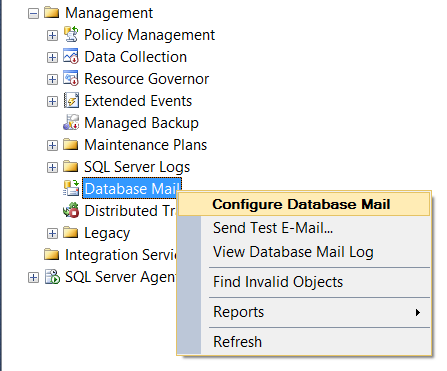
In Object Explorer, expand Management and right click Database Mail:
Picture5
To Boldly Get Bolded So You Know Exactly Where to Click
Click ‘Next’, then click the first option to set up Database Mail.

Step 1: Create a Profile

Name your profile, then click ‘Add’ to add an account:
Picture6
The more descriptive the better, since you may want multiple profiles for different purposes.

STEP 2: Create An Account

When adding an account, specify:
  • Email address: Most people use SQLSERVER01@yourdomain.com
  • Display name: Most people use the SQL Server’s name here, like SQLSERVER01
  • Reply email: Most people use DONOTREPLY@yourdomain.com
  • Server name: this is the smtp server you’re using. Don’t use gmail for production servers, the screenshot is just an example. Seriously.
  • Port and your authentication options. This varies by email service.
Picture7
Ask your sysadmin for the details of your Exchange server.
Remember to use a smpt server or service you trust; these emails will be vital to monitoring your server’s health.

C. Send a Test Email

Right click on “Database Mail” in Object Explorer. Select “Send a Test Email.” Fill out the helpful little form and make sure it works.
If it doesn’t work, there’s a problem in your setup. Right click “Database Mail” again and select “View Database Mail Log” to go hunting and find out where the issue is.

D. Enable Database Mail on the SQL Server Agent

You’re almost there, we promise. At this point your SQL Server can send mail, but the SQL Server Agent can’t yet. You need to tell it how you want it to use Database Mail for it to have powers to alert you about problems.
Right click on the SQL Server Agent and select properties, like this:
SQL Server Agent Properties

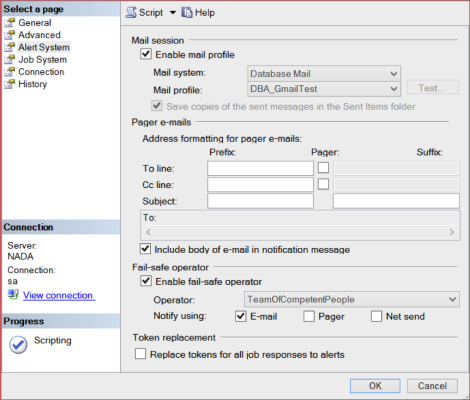
Now Click on the Alert System Tab

This is where you tell the SQL Server Agent what database mail profile to use. Enable the mail profile, then select your mail profile. You may also want to set up your failsafe operator right now. Then click OK.
SQL Agent Alert System

Restart the SQL Server Agent Service to Make That Take Effect

The SQL Server Agent is a little slow to learn: it won’t be able to use database mail until you restart the Agent service. Important reminders:
  • Note that we aren’t talking about the whole SQL Server itself: only the Agent service
  • Check if any jobs are running before restarting the SQL Server Agent Service. It will kill the jobs, and won’t automatically restart them, so you may want to wait until a quiet time when jobs aren’t running to do this step.

E. Test Your Work

You’ve come a long way. Here’s how to revel in your success:
  1. Create a SQL Server agent job named ‘Test’
  2. Give it a single step named ‘Hi’ which executes: print ‘I love my hometown’
  3. Set the step to notify an operator on completion of the job
  4. Run the job
  5. Get the email
  6. Delete the job
  7. Party like it’s 2020

Below query can be used to the check the email status in msdb database.

USE msdb

SELECT * FROM sysmail_allitems
SELECT * FROM sysmail_event_log

DELETE FROM sysmail_allitems

EXECUTE msdb.dbo.sp_send_dbmail
@profile_name = 'MonitorDBActivity',
@recipients = 'nXXXXXXXn@gmail.com',
@subject = 'SQL alert Test email',
@body = 'this is sent from sql server via sp_send_dbmail'
GO

Friday, July 3, 2020

How to find slow performing SQL Server query


Approach to find slow performing SQL Server query

1. Check with Activity monitor in SSMS
2. sp_who2
3. For looking SPID, which is creating problem.

SELECT * 
FROM sys.dm_exec_sessions es
CROSS APPLY sys.dm_exec_input_buffer(es.session_id, NULL) ib
WHERE es.session_id > 50

4. With the help of below query to find out wait statistics, for slow running queries.

WITH Waits AS 
 ( 
 SELECT  
   wait_type,  
   wait_time_ms / 1000. AS wait_time_s, 
   100. * wait_time_ms / SUM(wait_time_ms) OVER() AS pct, 
   ROW_NUMBER() OVER(ORDER BY wait_time_ms DESC) AS rn 
 FROM sys.dm_os_wait_stats 
 WHERE wait_type  
   NOT IN 
     ('CLR_SEMAPHORE', 'LAZYWRITER_SLEEP', 'RESOURCE_QUEUE', 
   'SLEEP_TASK', 'SLEEP_SYSTEMTASK', 'SQLTRACE_BUFFER_FLUSH', 'WAITFOR', 
   'CLR_AUTO_EVENT', 'CLR_MANUAL_EVENT') 
   ) -- filter out additional irrelevant waits 
    
SELECT W1.wait_type, 
 CAST(W1.wait_time_s AS DECIMAL(12, 2)) AS wait_time_s, 
 CAST(W1.pct AS DECIMAL(12, 2)) AS pct, 
 CAST(SUM(W2.pct) AS DECIMAL(12, 2)) AS running_pct 
FROM Waits AS W1 
 INNER JOIN Waits AS W2 ON W2.rn <= W1.rn 
GROUP BY W1.rn,  
 W1.wait_type,  
 W1.wait_time_s,  
 W1.pct 
HAVING SUM(W2.pct) - W1.pct < 95; -- percentage threshold;

Make use of below Query to check the queries running multiple time and taking huge execution time.

SELECT TOP 10 
t.TEXT AS [QueryName],
s.execution_count AS [ExecutionCount],
s.max_elapsed_time AS [MaxElapsedTime],
ISNULL(s.total_elapsed_time / 1000 / NULLIF(s.execution_count,0),0) AS [AvgElapsedTime],
s.creation_time AS [LogCreatedOn],
ISNULL(s.execution_count / 1000 / NULLIF(DATEDIFF(s, s.creation_time, GETDATE()),0),0) AS [AvgExecutionCount],
query_plan
FROM sys.dm_exec_query_stats s
CROSS APPLY sys.dm_exec_query_plan(s.plan_handle) u
CROSS APPLY sys.dm_exec_sql_text(s.plan_handle) t

ORDER BY MaxElapsedTime DESC


Drop All Auto Created Statistics

The way the statistics work is that when SQL Server runs any query and it needs the statistics for them, it will automatically create them if the required statistics do not exist.

When your database about to go live, do this practice to check all user created statistics by load testing on TEST/STAGE environment, So drop all the auto-created statistics, so when the system goes live, it can build from the scratch all the necessary statistics based on the query patterns.

SELECT DISTINCT 'DROP STATISTICS '
+ QUOTENAME(SCHEMA_NAME(ob.Schema_id)) + '.'
+ QUOTENAME(OBJECT_NAME(s.object_id)) + '.' +
QUOTENAME(s.name) DropStatisticsStatement
FROM sys.stats s
INNER JOIN sys.Objects ob ON ob.Object_id = s.object_id
WHERE SCHEMA_NAME(ob.Schema_id) <> 'sys'
AND Auto_Created = 1


The above script will generate the drop script which you can run for your server and drop all the auto created statistics. Remember, if you are not sure if this step will help you or not, you should reach out to any SQL Server Performance Tuning Expert before you execute the drop statistics query

You can download Database Performance Analyser from below link to find and tune heavy workload i.e. tables and queries 

https://bit.ly/dpa-blog-918

If you found the Slow running query, you can also go through for below checks.

  • ·    Check for Execution Plan (Read execution plan right to left and top to bottom)
  • ·    Check for Spooling
    • Lazy Spooling - Duplicates of agreegation happens/ it's good in case of recursive CTE call
    • Egar Spooling - is Good
  • ·    Check for Hashmatch - Unsorted data (check for missing index)
  • ·   Check for KeyLookup - Missing data (to remove keylookup use covering index with include keyword)
  • ·    Check for Bad views - (Check for those joined tables, which are already including in the view and made extra join with that view)
  • ·    Check for Multiple subqueries - (In any select statement in multiple subqueries used then use CROSS APPLY instead)
  • Check for implicit conversion (remove or change the implicit conversion in where cause of data comparison)